Tasks Eye
You already know how to put tasks in Obsidian. The harder part is returning to a vault full of notes and knowing which ones need your attention right now.
New here? Watch the short tour first.
Tasks Eye turns your notes into an organized, daily task board. Each row represents a
note, and the unchecked task with the earliest due date becomes the visible next action. An explicit
up link tree tells Tasks Eye the note’s context independently of folders. When
you are unsure what to do next, run
Tasks Eye: Show Focus.
Your Markdown remains the source of truth. Tasks Eye reads and updates the same checkboxes and dates you already use with the Obsidian Tasks plugin; it does not create a separate task database.
Set up your first notes
Section titled “Set up your first notes”Tasks Eye requires Obsidian 1.13.4 or newer and the Tasks community plugin.
Install and enable both plugins, then open Settings → Tasks Eye → Sources.
Choose a Notes folder, such as Tasks. Its Markdown notes and subfolders
will appear in Tasks Eye unless you add them to Excluded folders.
Create these files inside that folder. Each code block is the complete starting content of one file.
Home.md — the root:
---status: closedup: "-"---Work.md — a context for related notes:
---status: closedup: "[[Home]]"---Prepare meeting.md — a note with a next action:
---status: openup: "[[Work]]"---
Keep your agenda and background here.
- [ ] Draft the agenda 📅 2026-10-01- [ ] Send the agenda to attendees
Change the example date to today and open Tasks Eye: Show Focus. The meeting appears as one row under Work. Home and Work are closed, so they provide structure without appearing as active work.
The 📅 marker is the Tasks due date. You can use it as the day to return to
an action; it need not be a hard deadline. Past dates are called overdue.
Tasks scheduled and start dates do not determine when a row appears.
For larger vaults, see Sources and note conventions.
Find the right view
Section titled “Find the right view”| View | When to use it |
|---|---|
| Focus | Choose from open work due today or overdue. |
| Open | Plan across all open notes, including future and undated work. |
| Inbox | Fix missing information, overdue dates, and other issues. |
| Done | Review tasks completed on a selected day. |
Tree is a separate side panel showing the active note’s parents and descendants. It follows you as you open notes, wraps full titles, and lets you collapse branches or reveal one more level at a time. Closed descendants are hidden by default, except where they lead to unfinished notes.
Your daily board
Section titled “Your daily board”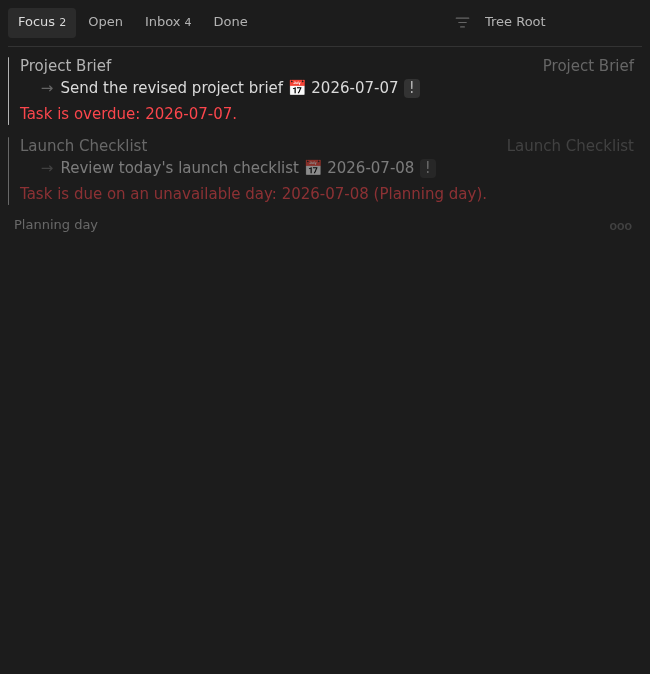
Focus keeps tasks due today and anything overdue in one clear list.
How to read Focus
Section titled “How to read Focus”- Start with the top row.Focus only shows work due today or overdue, ordered by date and then priority within each date.
- Read one row as one note.The bold text is the unchecked task with the earliest due date; the note title underneath opens the surrounding document.
- Use Open for future work.Open shows all open notes, grouped by the due date of each note’s next action.
- Use the up tree as context.With Home → Work → Meeting notes, Work is the context. Select Work to narrow the board, or Home to show the whole tree.
Act from the board—or open the note
Section titled “Act from the board—or open the note”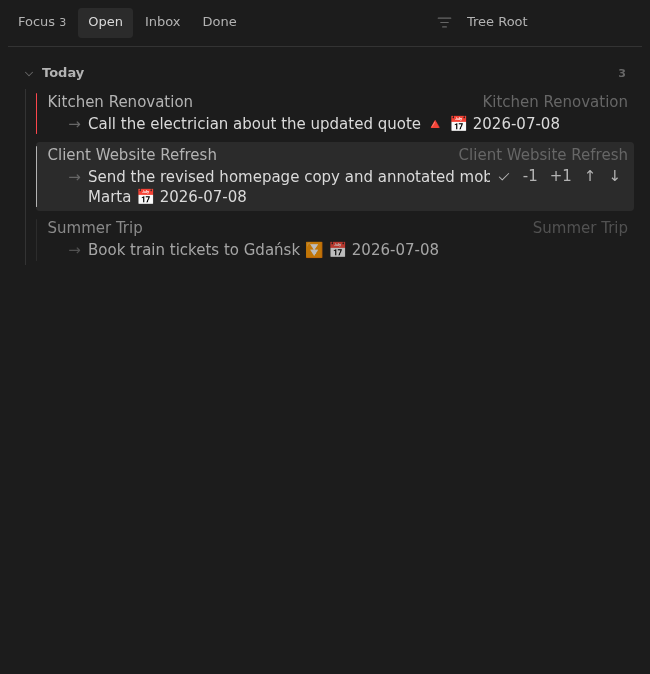
Hover or focus a row to reveal the checkmark, date controls, and priority arrows. Every change is written back to the original Tasks checkbox.
If the next action is simple, complete or reschedule it without leaving Focus. If you need more context, meeting notes, or links, click the note title to open it and work with the task in its full environment.
Inbox shows what needs attention
Section titled “Inbox shows what needs attention”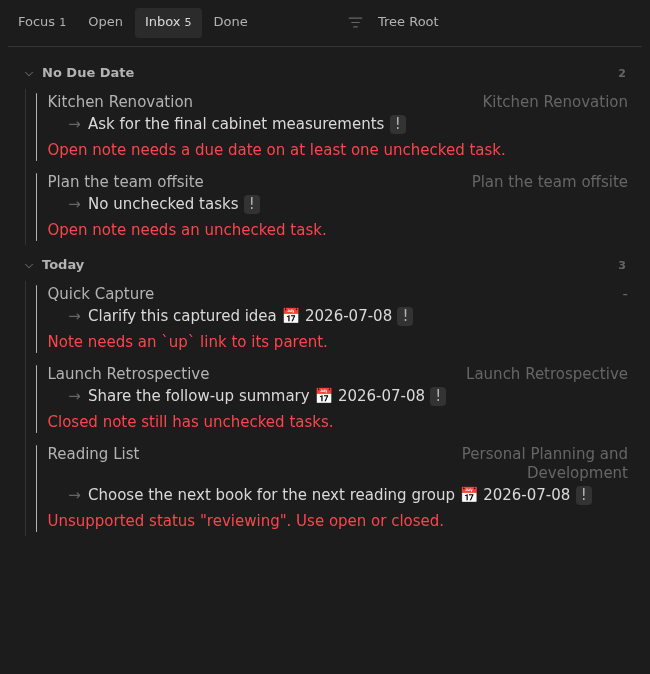
Inbox explains missing properties, overdue work, and other issues on each row.
Focus and Open rely on your notes having clear dates and tasks.
Inbox finds the exceptions: an overdue or missing task date, an open note with
no unchecked tasks, an unsupported status, or a broken up tree. Follow the message on each row to decide what to fix or reschedule.
A simple daily workflow
Section titled “A simple daily workflow”- Run Tasks Eye: Show Focus and work through today’s notes until Focus is empty.
- At a natural break, run Tasks Eye: Show Inbox and repair its notes until Inbox is empty.
- Use Open to plan tomorrow. Then finish for now or work ahead on future notes.
See the full daily attention workflow.
The deeper reference explains how Focus behaves, how Open supports planning, how notes participate in the workflow, and all commands and recommended hotkeys.